
What is the easiest way to install the Google Voice app on a computer?
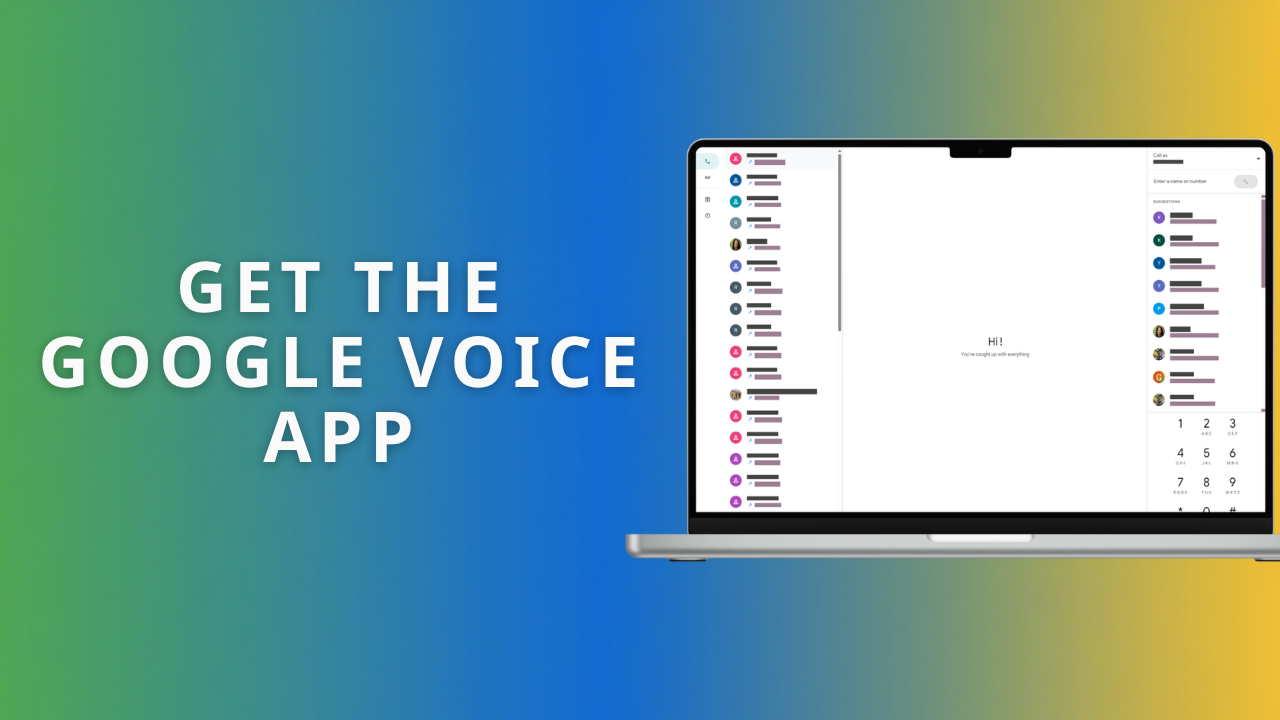
Are you tired of losing your business phone calls in a sea of open browser tabs? When you or your team members are busy working, the last thing you want is to be hunting for the right tab just to answer an important client call. It is a common frustration, but there is a straightforward fix that completely separates your phone system from your web browsing.
The easiest way to install the Google Voice app is to use your existing web browser. Because the Google Voice app is a Progressive Web App (PWA), you do not need to download bulky setup files or wait for a long installation process. If you use a modern browser like Chrome or Edge, you can install the standalone app directly from your address bar in about three clicks.
How to install the Google Voice desktop app in four simple steps
Having a dedicated app means your team members can make and receive calls from a recognisable business number without the clutter of a busy web browser. Here is exactly how to get it set up on your computer:
Open your browser: Launch Google Chrome or Microsoft Edge, then head to voice.google.com.
Find the install icon: Once the page has fully loaded, look to the far right of your address bar for a small 'install' icon.
Click to install: Click that icon, then tap the 'Install' button in the pop-up.
Pin it for easy access: The Google Voice homepage will close in your browser, and the app will instantly open in its own dedicated window. Before you close it, right-click the new icon on your Windows taskbar or Mac Dock and pin it
If you would prefer to see this process in action, you can watch our quick video guide here: https://youtu.be/7lRXDH9SVzQ
By pinning the Google Voice app to your taskbar or dock, you guarantee that your business phone system is always just one click away, completely separate from your daily web browsing.
If you'd like an expert to help you implement this, the next step is to book a video call with us using the form below.