
How to turn off notifications in Google Chrome

Notification spam is a real problem on many websites, especially local news sites, which use dark patterns to trick you into enabling notifications.
Once you allow notifications, these sites will spam you through Chrome's notification system about new content and stories appearing on their websites, hoping you will click the message to return to their site, thereby letting them generate revenue from the ads they display on the webpage.
Google and other browser makers are working on technologies to reduce spam notifications and make it clearer how to turn off notifications. However, turning it off is still rather complex if you have not been shown where to go and what to click to disable unwanted notifications.
Follow these steps to turn off unwanted notifications:
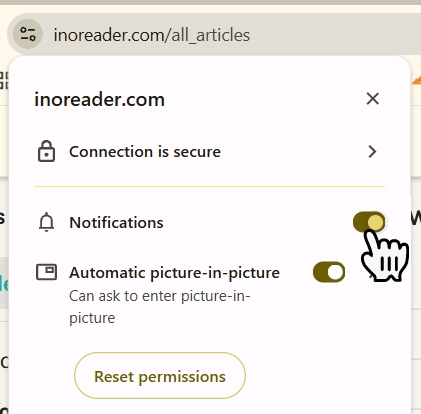
Go to the website that is sending the unwanted notifications
Click on the options icon on the far left of the address bar
From the menu that appears, toggle off notifications
Reload the webpage using the button that appears under the address bar.
You will now have notifications disabled for that website.