
How to fix your browser from preventing Google Voice from ringing.
Google Voice is the telephone service you can add to your Google Workspace package. Letting you make voice calls directly in your web browser through Gmail and the Voice website.
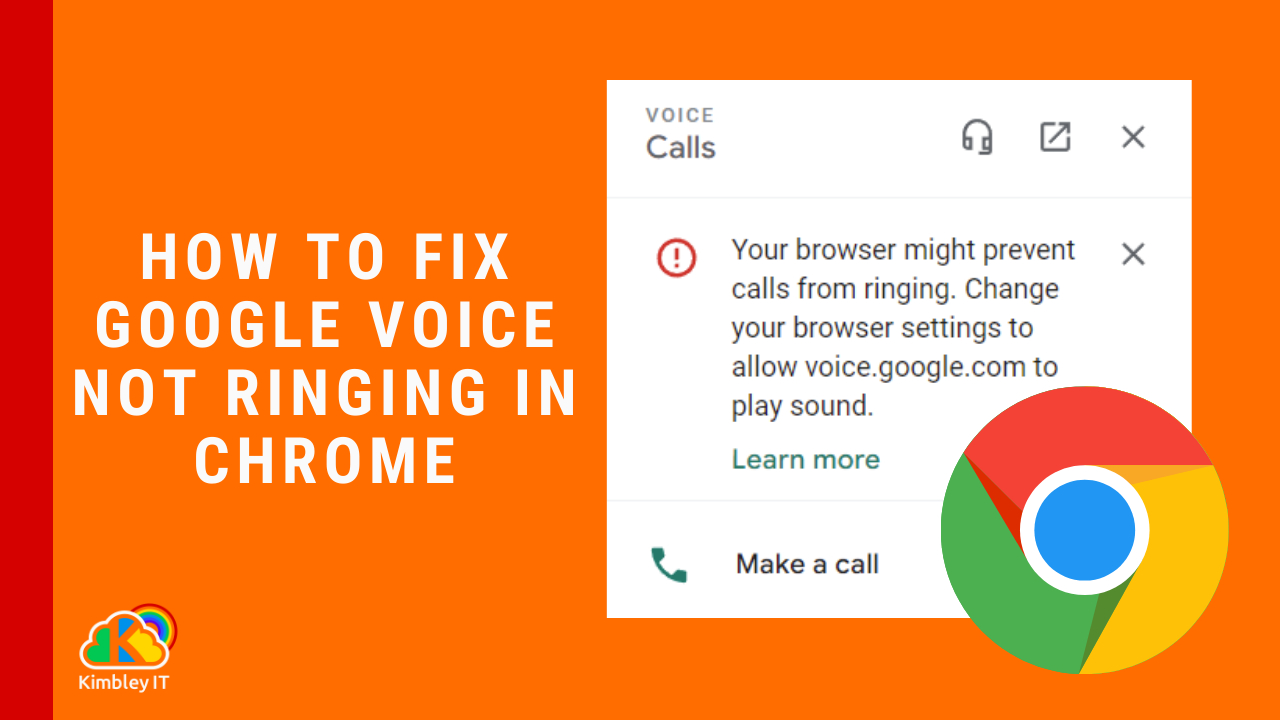
However, if your settings are not correct in your web browser, you may see the message: "Your browser might prevent calls from ringing. Change your browser settings to allow voice.google.com to play sound." Thankfully, the fix is relatively simple if you know where to go in your browser settings.
Putting the correct settings in place
If you see the message, "Your browser might prevent calls from ringing. Change your browser settings to allow voice.google.com to play sound." you need to do the following:
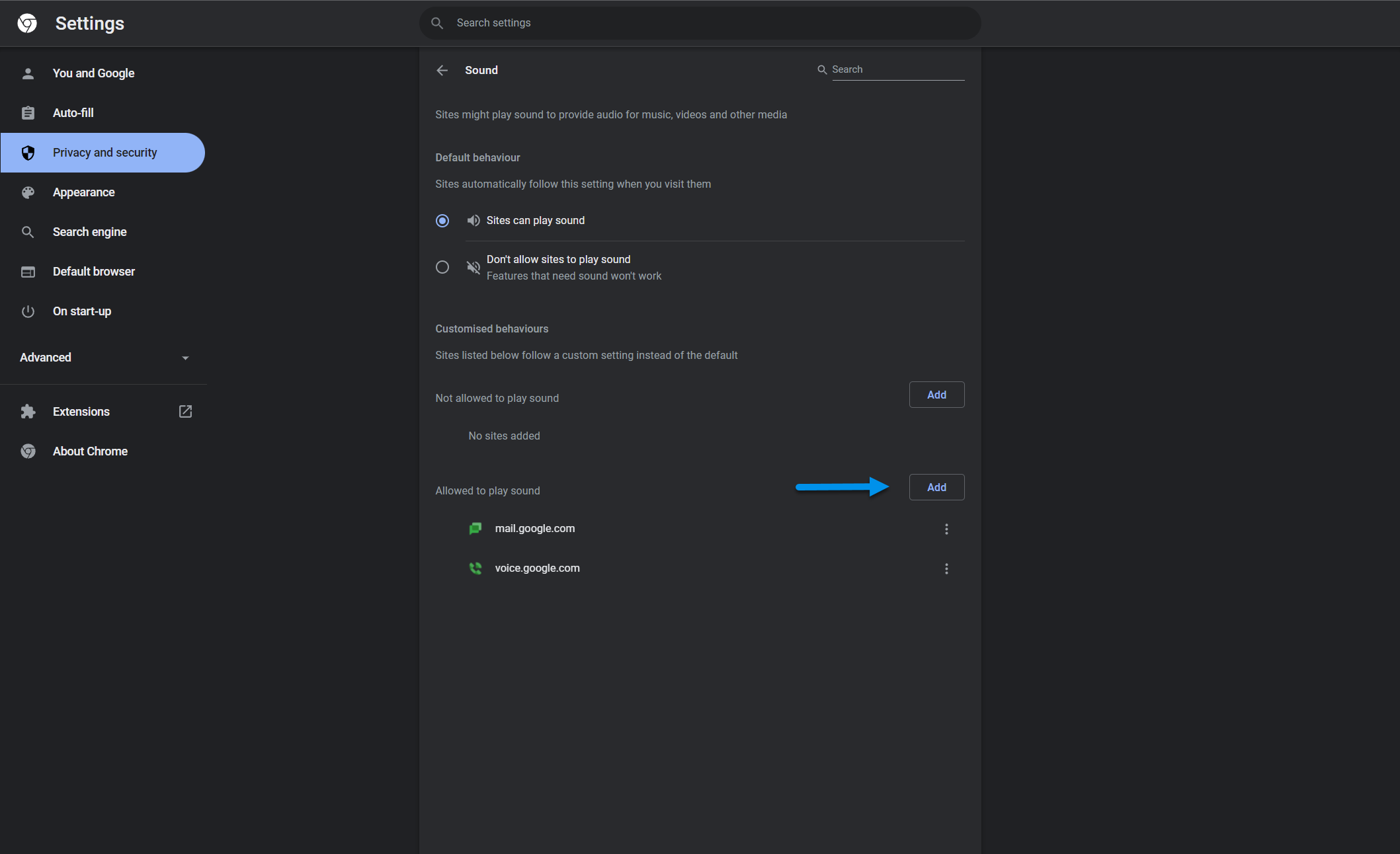
In Chrome, copy this chrome://settings/content/sound into your address bar and press enter.
On the page that loads under the section Allowed to play sound, click Add.
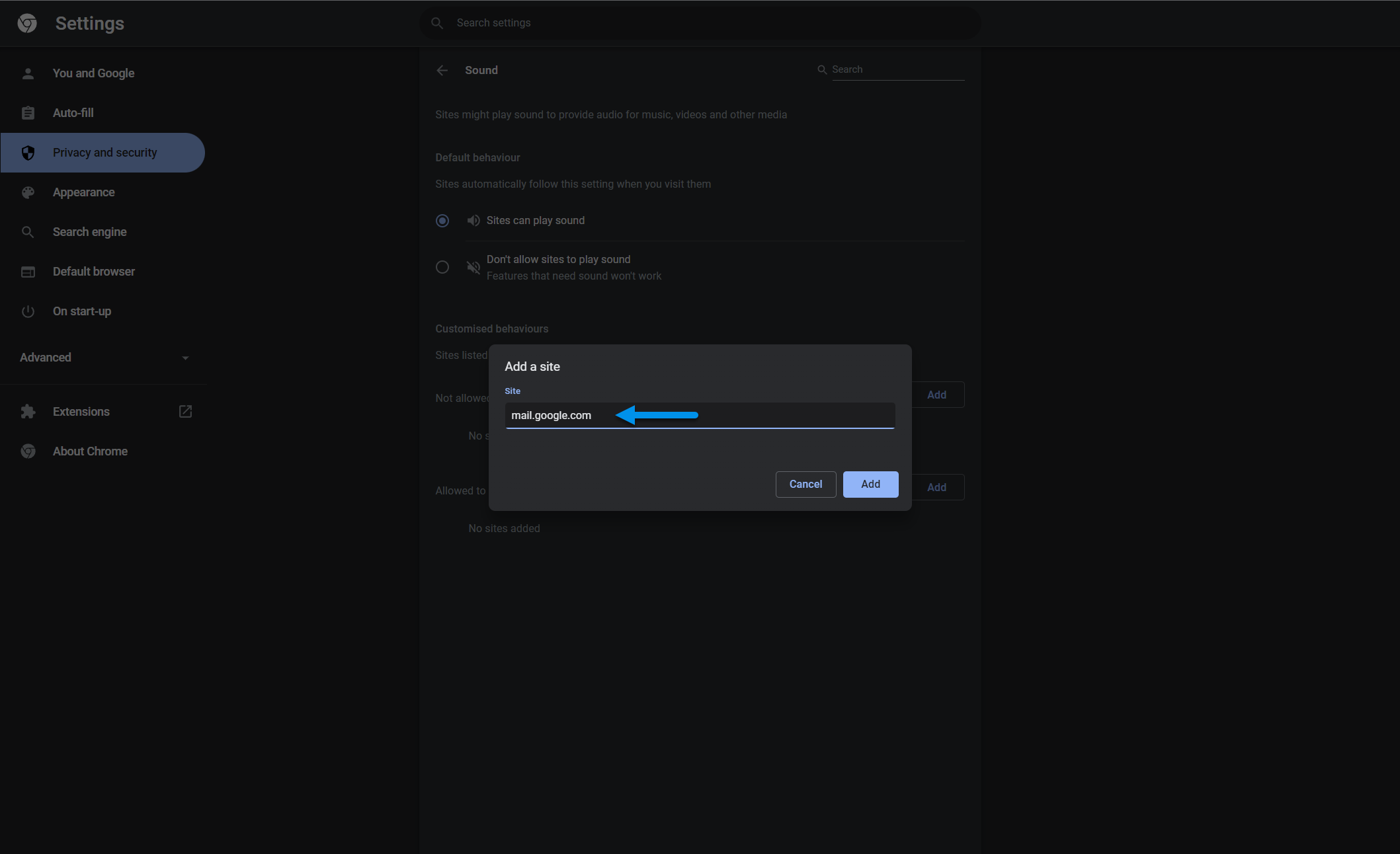
In the Site box, enter mail.google.com, then click Add.
Under Allowed to play sound, click Add again.
In the Site box, enter voice.google.com, then click Add.
You can now close this window.
Head back to Gmail and Google Voice and reload each website. The error message will vanish.
Google Voice is now working correctly, and when someone calls you, your browser will ring.