
How do I quickly undo a mistake in a Google Doc or Sheet?
It happens to the best of us. You are working in a shared spreadsheet, a team member makes a change, and suddenly #REF! errors appear everywhere. Or perhaps someone tweaks a paragraph in a shared Doc, but you preferred the way it was phrased yesterday.
It’s annoying, but it doesn’t have to be a headache.
Google Workspace has a built-in feature called Version History. It is designed exactly for these moments, letting you jump back to correct a small slip-up without needing to rebuild your work from scratch.
Note: These steps apply when you have the file open and want to make an edit. If your file is corrupted, won't open at all, or is a non-Google file (like a PDF or Excel) stored in Drive, you’ll need to use the Google Drive Manage Versions tool instead.
How to access Version History
To find a previous version of your Google Doc, Sheet, or Slide, you don't need to panic.
Open your file.
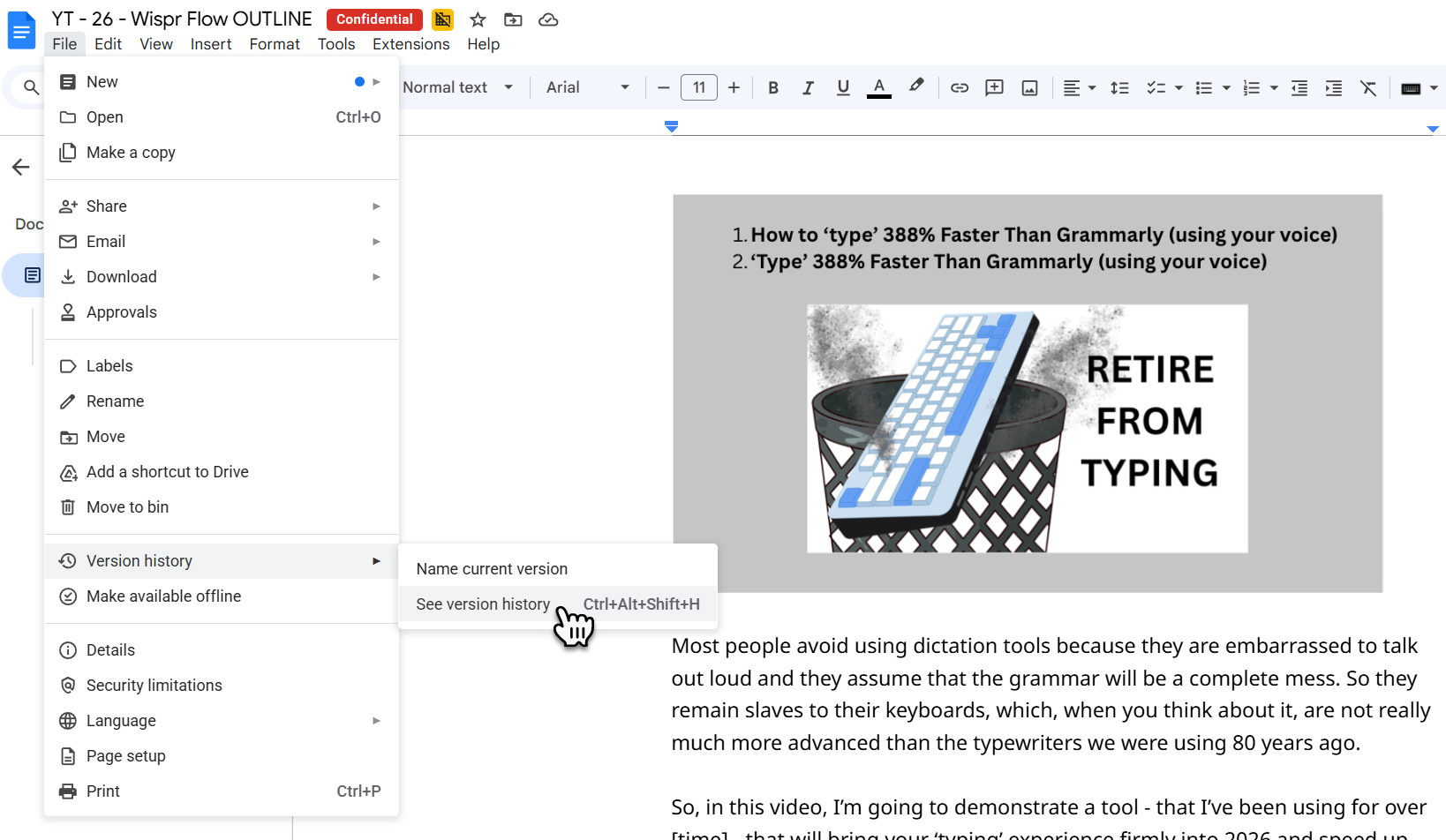
Go to the top menu and click File.
Hover over Version history.
Select See version history.
(Shortcut tip: You can also click the underlined text at the top of the document that says "Last edit was..." to jump straight there.)
The Standard Method: Restoring a previous version
Once you are in the Version History screen, you will see a list of dates and times on the right-hand side. You can click through these to see exactly what the document looked like at that moment.
If you have just spent the last ten minutes going down a rabbit hole and realised you’ve made the document worse, you can simply wind back the clock.
Select the date and time on the right where the file looked correct.
Click the blue Restore this version button at the top of the screen.
This effectively hits "undo" on everything that has happened since that timestamp. It is perfect for quickly reverting small, recent mistakes.
The "Hidden" Feature: Make a Copy (The Safer Option)
Sometimes, using the "Restore" button feels a bit risky. You might not want to revert the entire spreadsheet back to yesterday and lose all the other good work you’ve done since. Perhaps you just want to see what one specific formula looked like before it broke.
You don’t have to overwrite your current document to see an old one.
There is a hidden option that lets you make a standalone copy of an old version without touching your live file.
In the Version History menu, find the version you want to inspect.
Click the three dots (⋮) next to the date/time on the right-hand side.
Select Make a copy.
Give it a name (e.g., "Sheet - Old Formula Check").
Now you have a separate reference file. You can open it side-by-side with your live document, copy exactly what you need (like that broken formula or deleted paragraph), and paste it back into your current work. It is the safest way to fix a specific error without undoing everyone else's hard work.
Important: Version History is NOT a Backup
While Version History is incredibly handy for productivity and fixing small mistakes, it is important to remember that it is not a backup solution.
If a file is accidentally deleted and sits in the bin for more than 30 days, Version History cannot save you. If a team member accidentally wipes a massive folder structure, Version History won't help you restore it easily.
This is why Kimbley IT clients receive an independent backup of their entire Google Workspace. This protects your business against mass changes, accidental deletions, or data loss that goes unnoticed for weeks. Version History is for your daily edits; independent backups are for your business security.
If you'd like an expert to help you set up proper data protection or audit your team's Google Workspace settings, the next step is to book a video call with us using the form below.