
What is the best way to standardise email signatures in Google Workspace?
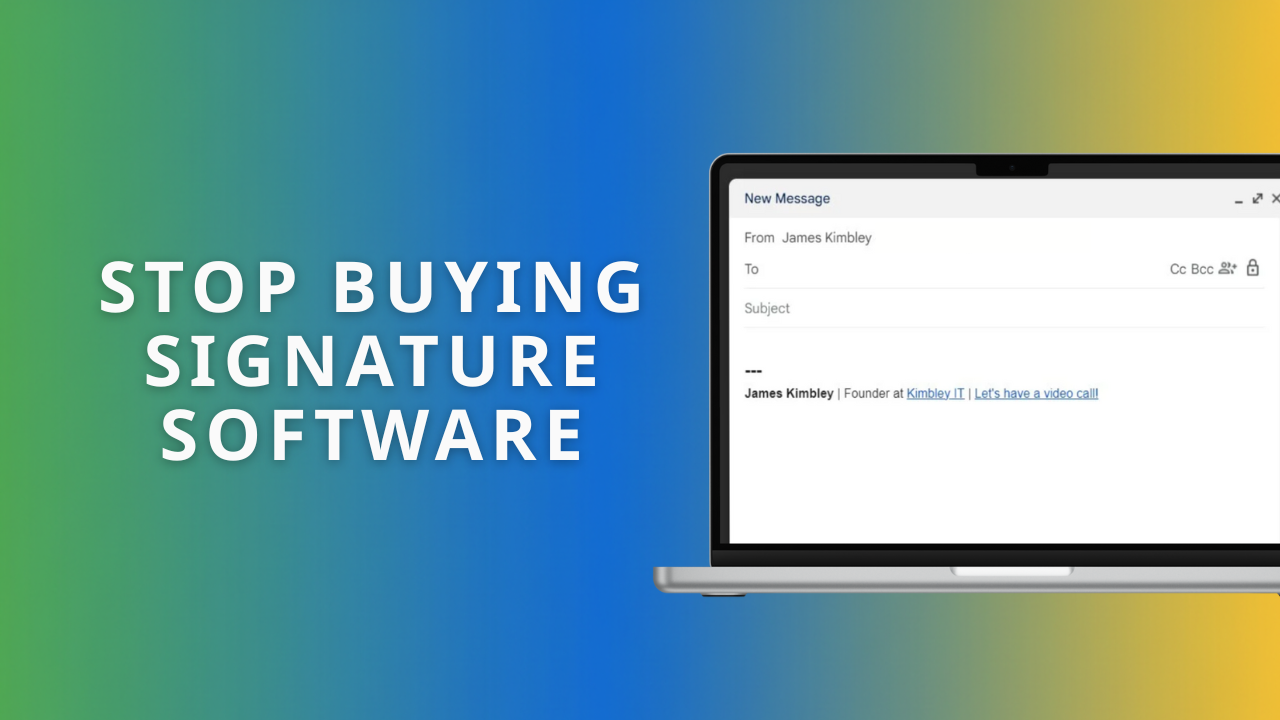
You want your team to look professional. You want every email sent from your business to have a consistent look and feel, but Google Workspace doesn't make this easy.
If you’ve gone hunting for a solution, you’ve probably stumbled across the "Append Footer" setting in the Google Admin Console and thought, "That's it!"
But it’s not.
That setting is actually designed for the legal compliance footer, those boring blocks of text stating your company registration number and disclaimer. It appends text to the very bottom of the email chain, not directly after your message. If you try to use it for personal signatures, your name appears miles away from your actual message, often buried at the bottom of a long thread where no one will ever see it.
So, you are left with two options: pay for expensive third-party "middleman" software that injects signatures for you, or do it the smart way.
The "SOP" Method: The Zero-Cost Solution
The most effective way to manage company-wide signatures isn't a piece of software; it's a Standard Operating Procedure (SOP).
Instead of fighting with compliance settings or paying monthly fees for "signature management" tools, you should create a simple, text-based template in a shared Google Doc. You then make setting up this signature a mandatory step in your onboarding checklist for every new team member.
It sounds too simple to work, but it solves the problem perfectly without the technical headaches. Here is why this approach wins.
Why "Fancy" Signatures Are a Waste of Time
Many business owners spend hours designing the "perfect" email stationery. They obsess over fonts, layout, and an array of award logos under the email body.
The reality? That time is wasted.
Your customers don't care about the artwork. Heavily designed signatures are often just a vanity project. If you want to shout about your latest award win, do it on your website where it belongs.
It breaks on mobile. Over 50% of emails are now read on mobile devices. Complex signatures with banners and columns force readers to scroll horizontally or pinch-to-zoom just to read your actual message.
It hurts your deliverability. Spam filters look for "heavy" emails. Signatures packed with HTML code, images, and links are far more likely to trigger spam warnings than a clean, text-based email.
Images get blocked anyway. Since Outlook 2000, Microsoft has blocked automatic image downloads to prevent malware. Your recipients likely see a box with a red "X" instead of your beautiful logo. Why bother?
How to Implement the "Google Doc" Strategy
The goal is a signature that is text-based, simple, and informative. It should communicate who you are and how to contact you, nothing more.
Here is the step-by-step process to roll this out to your team:
Create your "Master Signature" Google Doc. Open a new Google Doc. Design a clean, text-based signature. You can use bold text or a single small logo if absolutely necessary, but keep it minimal.
Protect the file. Set the sharing permissions to "Anyone in [Your Company] can View." This ensures team members can copy it but can't accidentally break the formatting.
Update your Onboarding Checklist. Add a specific task for new starters: "Go to the Master Signature Doc, copy the template, paste it into your Gmail settings, and replace the placeholder name with your own."
Send a one-time update to existing teams. If your current signatures are a mess, send a friendly email with the link to the Doc and ask everyone to update theirs by the end of the week.
Frequently Asked Questions (FAQs)
These are the questions we hear most often from business owners trying to fix their email signatures in Google Workspace.
How can I manage Google Workspace email signatures centrally without third-party software? Use a "Master Signature" Google Doc as a company SOP. Have every team member copy the same format during onboarding. It’s free, simple, and avoids technical debt.
Does using third-party email signature tools breach data privacy or security? It can. "Middleware" software acts as a relay, meaning every email leaves your secure Google Workspace environment to get "stamped" on an external server. This breaks the chain of custody and may violate strict confidentiality agreements.
Why does my email signature software cause delivery errors or downtime? Middleware introduces a single point of failure. If the provider’s server goes down or glitches, your email delivery fails. You often spend more time troubleshooting the software than you save on signature management.
Why do images in my email signature appear as a Red X in Outlook? This is a security feature. Microsoft Outlook blocks automatic image downloads to prevent tracking pixels and malware. If your signature relies on images, it will look broken to most recipients. Stick to text.
Need help standardising your Google Workspace?
Setting up a company-wide signature policy is just one small part of running a smooth IT operation. If you would like an expert to help you implement this or optimise your entire Google Workspace setup, the next step is to book a video call with us using the form below.