What is the best AI notetaker for in-person meetings?
Ever walked out of a brilliant in-person meeting, only to realise nobody actually wrote down who is doing what? Relying on memory or rushed scribbles often leaves your team members confused about their next steps.
The fix is already on your phone. Thanks to a recent Google Meet update, you no longer need to be on a video call to get clean, automated notes. The same Gemini-powered notetaker that's been writing up your video calls now works for the meeting happening across the table.
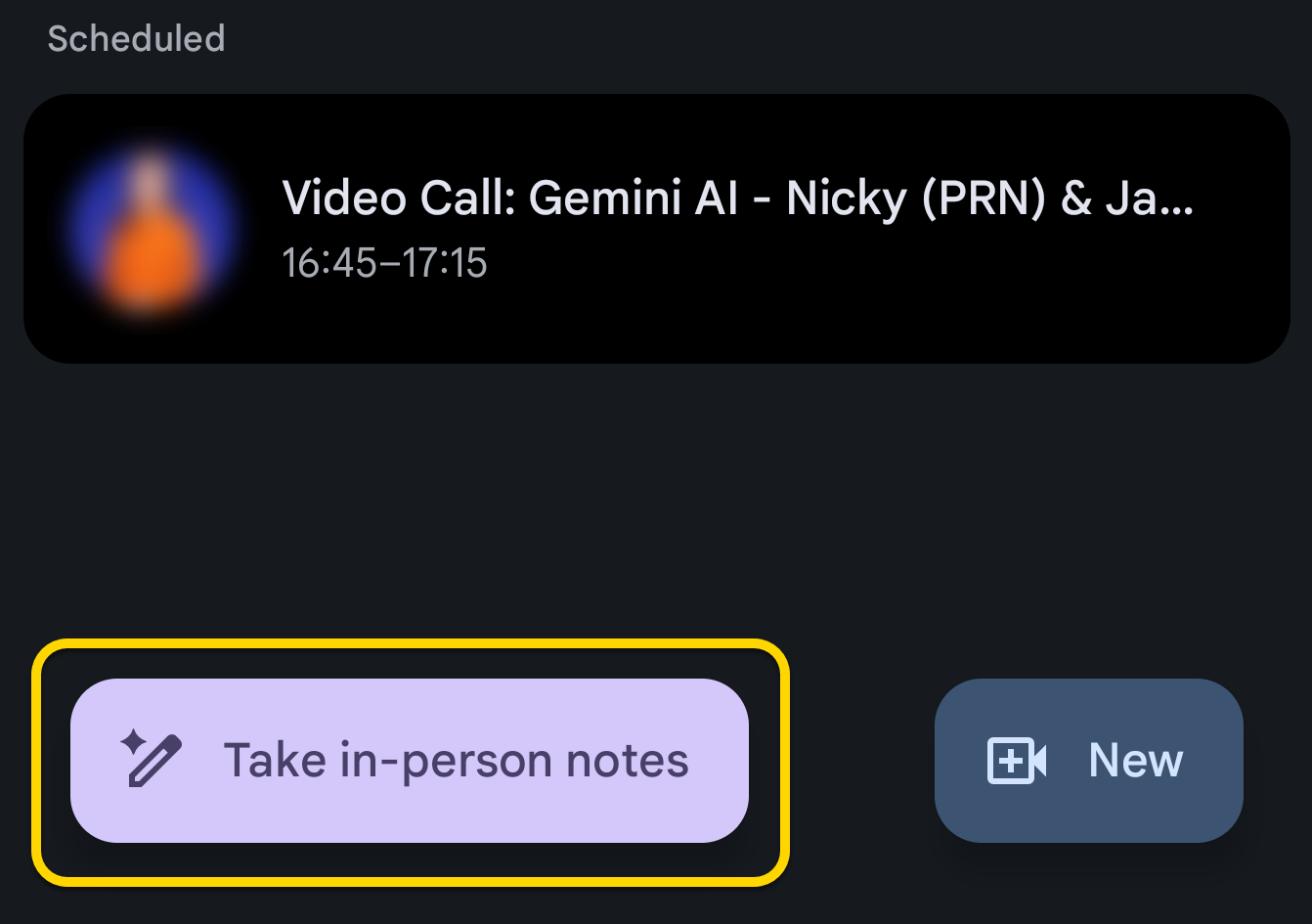
To capture exactly what was agreed in the room, just use your mobile phone. Here is how simple it is:
Open the Google Meet app on your mobile phone.
Tap the 'Take In-Person Notes' button on the home screen.
Place your phone on the table.
Gemini will listen to the conversation and automatically write up a neat summary and a clear list of action items directly into a Google Doc. It is incredibly handy if you already use Google Workspace, removing the need to buy a separate notetaking tool just for your physical meetings.
You can read more on why AI notetaking is worth turning on in this post on AI notetaking in Google Meet. The same reasoning now applies to every meeting you attend, not just those held online.
Stop losing great ideas the moment you leave the meeting room. If you'd like an expert to help you implement this, the next step is to book a video call with us using the form below.